How to learn basic computer skills from home in 2026. This easy step-by-step guide covers hardware, software, AI tools, and internet safety for beginners.
Introduction for How to learn basic computer easily
Imagine this—
You sit in front of a computer, but you don’t know where to start. The mouse feels confusing. The keyboard looks overwhelming.
You’re not alone.
Millions of beginners around the world are learning basic computer skills from home. The good news? You don’t need a classroom, expensive course, or technical background.
All you need is the right guidance—and this guide will walk you through everything step by step.
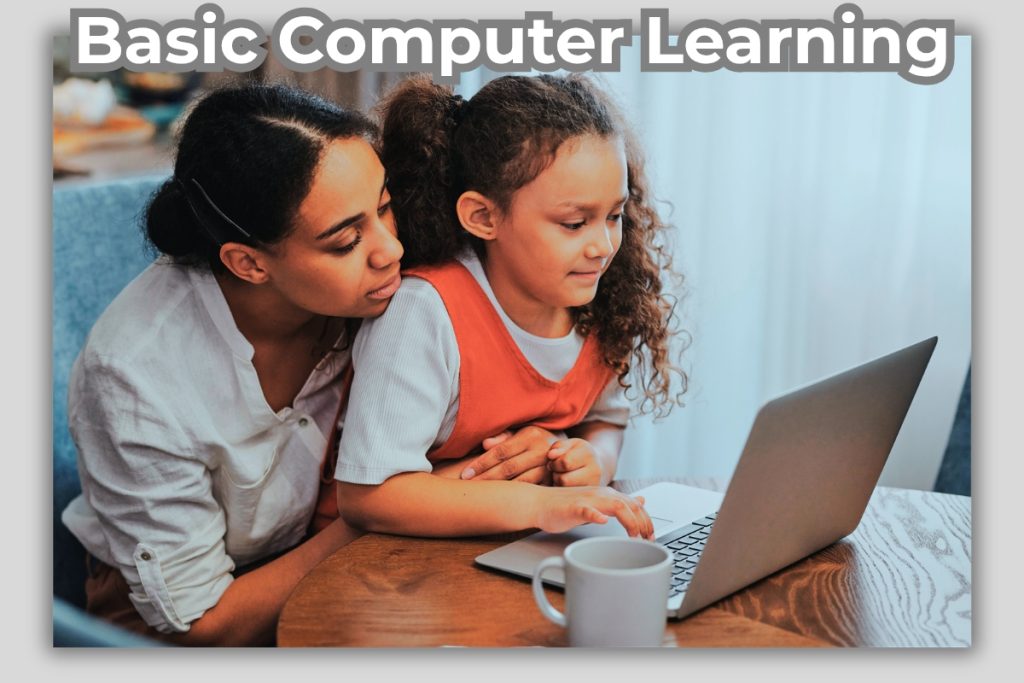
What Are Basic Computer Skills?
Basic computer skills are the simple abilities you need to use a computer effectively in daily life.
These include:
✔ Turning a computer on and off
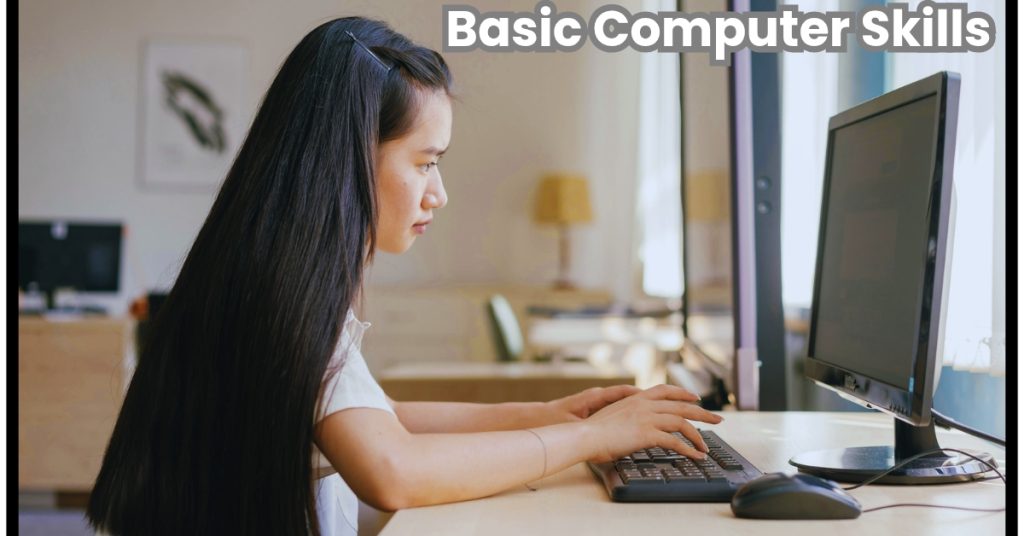
✔ Using a mouse and keyboard
✔ Opening apps and files
✔ Browsing the internet
✔ Typing and saving documents
Think of it like learning to drive. First, you learn the basics. Then you improve with practice.
Why Learn Computer Skills at Home?
Learning from home is easier than ever.
✔ Benefits:
Learn at your own speed
No pressure or classroom stress
Completely free resources available
Flexible timing
Example: A student can practice typing for 15 minutes daily and improve within weeks.
Getting Friendly with the Hardware (The “Physical” Stuff)
Before we dive into the internet or cool apps, we need to talk about the machine itself. Think of a computer like a car. You don’t need to be a mechanic to drive one, but you should definitely know where the steering wheel and the brakes are.
Desktop vs. Laptop
Most people today use laptops because they are portable, but desktops are still the kings of the home office.
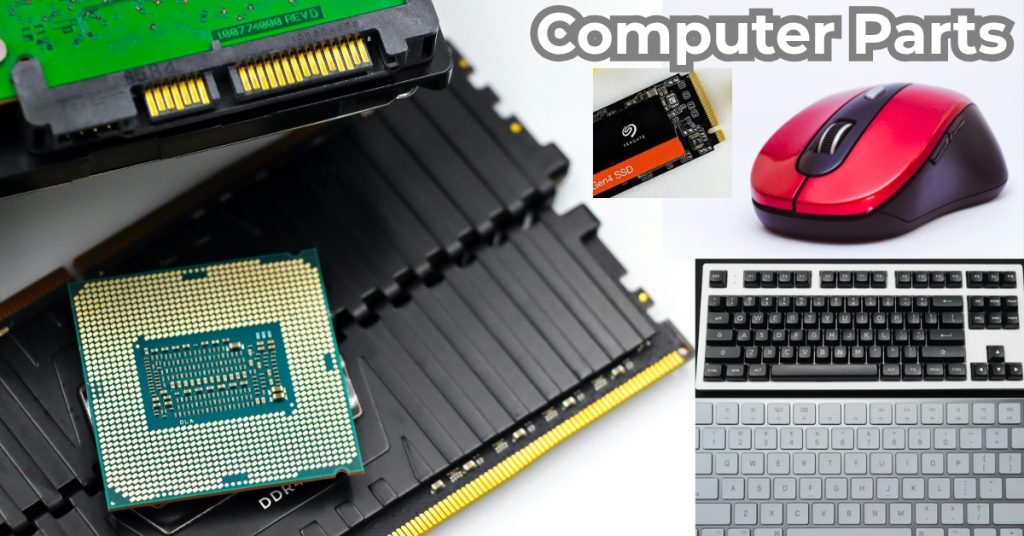
- The Brain (CPU): This is usually a box (on a desktop) or tucked under the keyboard (on a laptop). It does the heavy lifting.
- The Monitor: Your window into the digital world.
- Peripherals: This is just a fancy word for your mouse, keyboard, and printer.
Real-Life Exercise: Find your power button. On many modern laptops, it might look like a regular key or even a fingerprint scanner. Practice turning the machine on and “Shutting Down” (not just closing the lid!) through the menu. This clears out the “cobwebs” in the computer’s memory.
Breaking the “I’m Going to Break It” Fear
The biggest hurdle for most beginners isn’t the technology—it’s the fear of clicking the wrong thing and causing an explosion. Here is a secret from the pros: You almost certainly won’t break it.
Modern computers are built with “Undo” buttons. In 2026, operating systems like Windows and macOS are incredibly resilient. If you make a mistake, you can usually just restart.
- The Magic Command: If you’re typing and accidentally delete a whole paragraph, hold the Control (Ctrl) key and press Z. Boom. It’s back. (On a Mac, it’s Command + Z).
Mastering the “Big Three” Operating Systems
An Operating System (OS) is the “manager” of your computer. You’ll likely be using one of these three:
- Windows (PC): The most common choice for offices and schools. It uses a “Start” menu in the corner to find everything.
- macOS (Apple): Known for being pretty and simple. Instead of a Start menu, it has a “Dock” at the bottom with your favorite apps.
- ChromeOS: Found on Chromebooks. It’s basically just a web browser. If you can use Google, you can use a Chromebook.
What should you practice first?
Start with File Management. It sounds boring, but it’s the most important skill. Learn how to create a folder on your “Desktop” (your main screen), name it “Tax Documents” or “Family Photos,” and drag files into it. If you can organize your digital desk, you’re already ahead of 50% of users.
The Art of “Talking” to Your Computer
In 2026, we interact with computers in three ways: typing, clicking, and speaking.
Typing Like a Pro
You don’t need to be a 100-word-per-minute speedster. But if you’re still doing the “hunt and peck” (searching for each letter with one finger), you’ll get frustrated.
- Try This: Use a site like Keybr or TypingClub. They feel like games, and 15 minutes a day will change your life.
Mouse Mastery
The “Right Click” is your best friend. In almost any program, if you aren’t sure what to do, Right-Click on an object. A menu will pop up telling you your options (Copy, Paste, Delete, Rename). It’s like having a “Help” button everywhere you go.
Navigating the 2026 Internet
The internet isn’t just for looking at cat memes anymore (though that’s still a valid use). It’s where we do our banking, shopping, and working.
The Browser
Your browser (Chrome, Safari, or Edge) is your vehicle.
- Tabs: Learn to use tabs so you don’t have twenty different windows open.
- Bookmarks: When you find a recipe or a news site you like, “Bookmark” it (usually by clicking a star icon). This saves it for later.
Staying Safe (The Non-Scary Way)
The internet can be a bit like a big city—most people are nice, but you don’t leave your wallet on the sidewalk.
- Passwords: Use a password manager. Don’t use “Password123” for everything.
- The “S” in HTTPS: Look at the web address. If it starts with https://, the “s” stands for secure. If it just says http://, be careful about entering any credit card info.
Embracing the AI Revolution
Since we are in 2026, we have to talk about AI. You’ve probably heard of Gemini, ChatGPT, or Copilot. For a beginner, these are actually the best tools ever invented.
Why? Because you can ask them questions in simple English.
- Example: Instead of searching Google and clicking through ten links, you can ask an AI: “I am a beginner. Can you explain how to attach a photo to an email in three simple steps?”
Learning to “prompt” (talk to) AI is a core part of how to learn basic computer skills today. Think of the AI as a very patient intern who is waiting to help you.
Productivity Software: Getting Stuff Done
At some point, you’ll want to create something.
- Word Processing: Google Docs is free and lives on the internet, so you never have to worry about “saving” your work—it does it automatically. Use it to write letters or resumes.
- Spreadsheets: Excel or Google Sheets. Don’t let the grids scare you. It’s just a digital way to make a list. If you’re planning a budget or a guest list for a party, this is your go-to tool.
Troubleshooting: The “Secret” Pro Skill
The difference between a “tech person” and a “beginner” isn’t that the tech person knows everything. It’s that the tech person knows how to use Google to fix a problem.
If your printer won’t connect, don’t give up. Type this into a search engine: “How to connect [Your Printer Model] to [Your Computer Type] 2026 guide.” You will find a video or an article that walks you through it. Learning how to find answers is the most important skill of all.
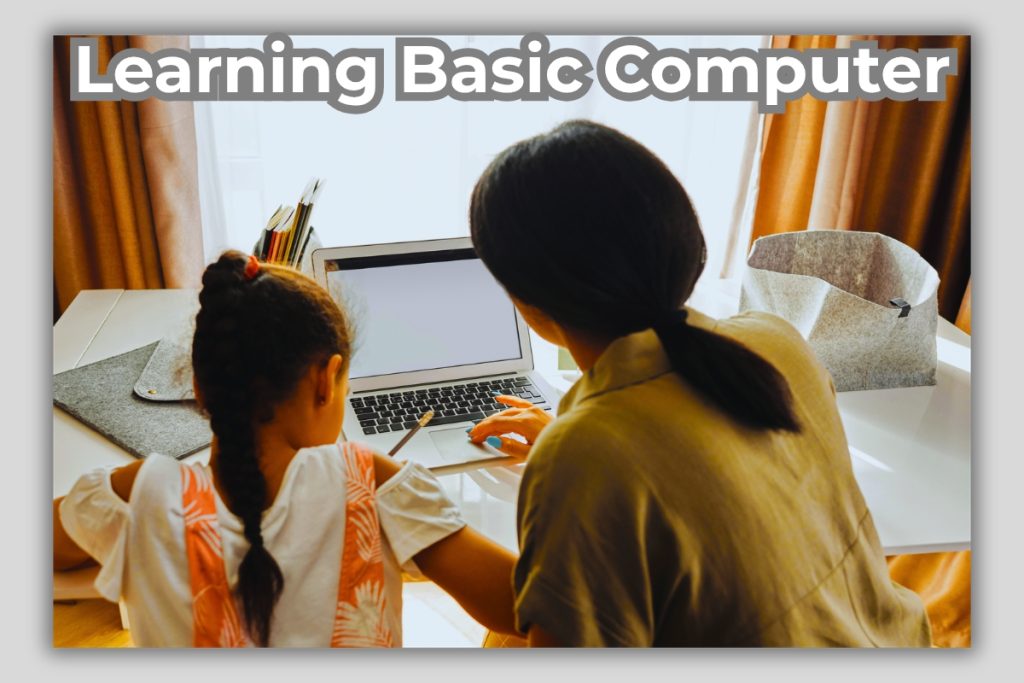
Step-by-Step: How to Learn Basic Computer Skills at Home
Step 1: Understand Computer Basics
Start with the parts of a computer:
Monitor (screen)
Keyboard
Mouse
CPU
Learn how to:
Turn the computer ON/OFF
Restart safely
Step 2: Learn Keyboard & Mouse Control
This is the foundation.
Mouse skills:
Left click
Right click
Double click
Scroll
Keyboard basics:
Typing letters
Using Enter, Space, Backspace
Practice daily for 10–15 minutes.
Step 3: Learn How to Use the Internet
The internet is where most tasks happen.
Learn:
Open a browser (Chrome, Edge)
Search on Google
Open websites
Example: Search “study tips for students” and explore results.
Step 4: File Management (Very Important)
Many beginners struggle here.
Learn:
Create folders
Save files
Rename files
Delete files
Example: Create a folder named “Study Notes” and save documents there.
Step 5: Learn Basic Software
Start with simple tools:
✔ Word Processing:
Write documents
Format text
✔ Basic Excel:
Create simple tables
✔ Presentation:
Create slides
Step 6: Practice Real-Life Tasks
Practice makes everything easier.
Try:
Write a small paragraph
Save a file
Open it again
Search something online
Real-life practice builds confidence fast.
Best Free Resources how to Learn basic computer at Home
You don’t need paid courses.
✔ Free options:
YouTube tutorials
Free blogs
Online beginner courses
Search: “basic computer skills for beginners”
Common Mistakes Beginners Make
Avoid these mistakes:
Trying to learn everything at once
Not practicing regularly
Fear of making mistakes
Remember: Mistakes = learning.
Your Step-by-Step Learning Schedule
If you’re doing this at home, don’t try to learn it all in one day. A student with zero knowledge started learning. Here is a sample plan:
- Day 1-3: Practice Turning the computer on/off, use the mouse, and open apps. Explore your settings. Change your desktop wallpaper.
- Day 4-7: Practice typing 15 mins a day, typed basic sentences and organize your folders. Work on your typing. Try to get through five lessons.
- Week 2: Create a “Digital Filing System.” Make folders for your photos, your bills, and your hobbies.
- Week 3: Deep dive into the internet. Practice “Bookmarking” and learn how to identify a “Phishing” emails.
- Week 4: Use an AI assistant to help you write a letter or plan a budget. Ask it to help you plan a grocery list or explain a news story you didn’t understand.
Result: Now confident using a computer
Tips to Learn Faster
✔ Follow these:
Practice daily (15–30 minutes)
Keep it simple
Repeat tasks
Stay consistent
Consistency beats talent.
Summary and Conclusion
How to learn basic computer in 2026 is a lot like learning to ride a bike. It feels wobbly at first, and you might “fall” (get a confusing error message), but once you get the hang of it, you’ll wonder how you ever lived without it.
The Key Takeaways:
- Start Small: Don’t worry about coding or complex design. Focus on folders, typing, and searching.
- Use Free Tools: YouTube and sites like GCFLearnFree are your best friends.
- Be Patient: your brain is creating new connections. It’s okay to repeat a lesson five times.
- Stay Curious: Treat the computer like a playground, not a chore.
By following this guide, you aren’t just learning buttons; you are opening doors to new jobs, new hobbies, and a more connected life. You’ve got this!
1. Do I need to buy an expensive computer to learn?
Not at all. In fact, for beginners, a mid-range laptop or a refurbished “Chromebook” is often better. They are simpler to use and much more affordable. Most basic tasks don’t require high-end “gaming” power.
2. Is my data safe if I learn everything online?
As long as you follow basic rules—like using unique passwords and not clicking on strange pop-up ads—you are very safe. Modern computers have built-in “Antivirus” software that does a great job of protecting you automatically.
3. What is the single most important computer skill to have in 2026?
Beyond turning it on, it’s Adaptability. Software changes its look every year. Instead of memorizing where a button is, try to understand what the icon means (e.g., a gear icon almost always means “Settings,” and a magnifying glass always means “Search”).