Basic computer skills in 2026. Learn hardware, software, AI tools, and cybersecurity with our easy, step-by-step guide for beginners.
Basic Computer Skills for Beginners: A Human Guide to the Digital World
Have you ever sat down in front of a computer and felt like you were staring at the control panel of a spaceship? You aren’t alone. Even in 2026, with all our fancy gadgets and talking robots, computers can still feel incredibly intimidating.
Maybe you’re a student trying to get through your first semester, or perhaps you’re a professional who’s realized that “getting by” isn’t enough anymore. Whatever your story is, welcome. This isn’t a dry technical manual. This is a conversation between us to help you feel confident, capable, and—dare I say—excited about using technology.
Learning basic computer skills is a bit like learning to drive. At first, you’re worried about hitting the wrong pedal, but eventually, you don’t even think about it. You just get where you need to go. Let’s get you in the driver’s seat.
1. The Physical Stuff: Knowing Your Hardware
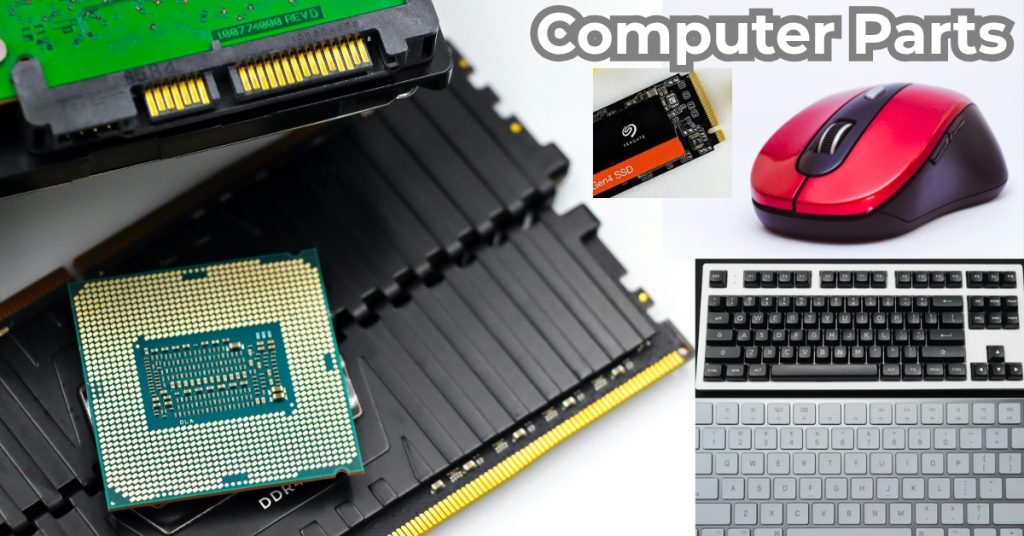
Before we worry about the internet or AI, let’s talk about the machine sitting on your desk or lap. Hardware is simply any part of the computer you can physically kick (though I don’t recommend it).
The “Brain” and the “Body”
In 2026, computers come in all shapes and sizes. You might have a Desktop, which stays on your desk, or a Laptop, which is portable. Both have a “Brain” called the CPU. It’s tucked away inside the casing, doing millions of calculations a second so you can watch a video or type an email.
Input and Output: How You Talk to the Computer
- The Monitor: This is your screen. Modern screens are often touch-enabled, much like your phone.
- The Keyboard: This is your primary tool for communication.
- The Mouse or Trackpad: This is how you move the little arrow (the cursor) around.
- Peripherals: These are “extra” things you plug in, like a printer, a pair of headphones, or a webcam for those Friday morning video calls.
Real-Life Example: Think of the hardware like a physical library. The building, the shelves, and the chairs are the hardware. The information inside the books? That’s the software.
2. The Secret Language: Operating Systems (OS)
The Operating System is the “boss” of the computer. It’s the software that tells all the other parts how to work together.
Meet the Big Three
- Windows (by Microsoft): The most common one you’ll find in offices and schools. If you’re using Windows 11 or 12, it’s designed to be very visual.
- macOS (by Apple): Known for being sleek and used by a lot of creative people like designers and musicians.
- ChromeOS: This is what you find on “Chromebooks.” It’s very simple and relies mostly on the internet.
Getting Around the Screen
When you turn on a computer, you land on the Desktop. This is your home base. At the bottom (or side), you’ll see a bar with little icons. In Windows, this is the Taskbar. On a Mac, it’s the Dock. This is where your open programs live.
3. Don’t Lose Your Stuff: File Management
If there is one skill that separates a “pro” from a “beginner,” it’s organization. Nothing is more stressful than knowing you wrote a 10-page report but having no idea where it went.
The Art of the Folder
Think of your computer as a giant digital filing cabinet.
- Folders: You should create folders for everything. “Photos 2026,” “Work Projects,” “Recipe Ideas.”
- Naming Files: Please, stop naming files “doc123.pdf.” Name it “Job_Application_April.pdf.” Your future self will thank you.
- The Search Bar: In 2026, the search feature on computers is incredibly smart. If you can’t find a file, just type a keyword into the search bar at the bottom of your screen.
The Cloud: Your Safety Net
You’ve probably heard people say, “It’s in the cloud.” This just means your file is saved on a secure server on the internet (like Google Drive or OneDrive) instead of just on your computer’s hard drive. If you spill coffee on your laptop, your files stay safe in the cloud.

4. The Power of Keyboard Shortcuts
| Action | Windows Shortcut | Mac Shortcut |
| Copy | Ctrl + C | Command + C |
| Paste | Ctrl + V | Command + V |
| Undo (The Lifesaver) | Ctrl + Z | Command + Z |
| Save | Ctrl + S | Command + S |
| Find Text | Ctrl + F | Command + F |
5. Navigating the 2026 Internet
The internet isn’t just for looking up cat videos anymore (though there are still plenty of those). It’s where we work, learn, and connect.
Browsers vs. Search Engines
Many people get these confused.
- A Browser is the app you open to get on the internet (Google Chrome, Safari, Microsoft Edge).
- A Search Engine is the website you use to find things inside the browser (Google, Bing, DuckDuckGo).
Using Tabs
In 2026, we don’t open a new window for every website. We use Tabs. Look at the very top of your browser. You can have your email open in one tab, a news site in another, and a music player in the third.
6. The Rise of AI: Your Personal Assistant
In 2026, basic computer skills include knowing how to talk to Artificial Intelligence. You don’t need to be a scientist to use AI; you just need to know how to ask it questions.
How AI Can Help You Daily
- Drafting Emails: Not sure how to ask for a day off? Ask an AI like Gemini or ChatGPT: “Write a polite email asking my boss for next Friday off.”
- Summarizing: If you have a long, boring article to read, you can paste it into an AI tool and say, “Give me the three main points of this.”
- Learning: “Explain how a computer works using a sports analogy.” AI is the world’s most patient tutor.
7. Word Processing and Spreadsheets
Even with all the new technology, the “Big Two” software types remain the same: writing and numbers.
Google Docs and Microsoft Word
These are for writing. Whether it’s a resume, a letter to a friend, or a school essay.
- Formatting: Learn how to make text bold, italic, or underlined.
- Alignment: Learn how to center your titles so they look professional.
Google Sheets and Excel
This is where people usually get scared. A spreadsheet is just a big table of rows and columns. It’s perfect for:
- Keeping a household budget.
- Making a list of holiday gifts.
- Tracking your fitness goals.
8. Staying Safe in a Digital World
The internet can be a bit like a big city—mostly great, but there are a few dark alleys you should avoid. Cybersecurity is a fancy word for “staying safe.”
The Golden Rules of Safety
- Unique Passwords: If your password is “password123,” change it right now. Use a phrase or a mix of random characters.
- Beware of Phishing: If you get an email that sounds urgent or “too good to be true,” it probably is. Never click links in emails from people you don’t know.
- Software Updates: When your computer pops up a notification saying “Update Available,” don’t ignore it forever. Those updates fix security holes that hackers try to use.
9. Troubleshooting: Don’t Panic!
Computers are temperamental. Sometimes they just decide to stop working. Before you throw it out the window, try these “human” solutions:
- The “Magic” Restart: It sounds silly, but turning a computer off and back on fixes about 90% of problems. It clears out the “cobwebs” in the memory.
- The “Check the Plug” Move: You’d be surprised how many “broken” computers are just unplugged.
- Google It: If you see an error message, type that message into Google on your phone. Someone else has had that problem, and they’ve probably posted the solution online.
10. Digital Etiquette: How to Be a Good Human Online
Being good with computers isn’t just about technical skill; it’s about how you interact with others.
- Email Tone: Without seeing your face, people can’t tell if you’re joking. Be clear and polite.
- Video Call Manners: In 2026, remote work is everywhere. Keep your background tidy and remember to stay on “Mute” when you aren’t speaking to avoid background noise.
- Privacy: Be careful about what you post. Once something is on the internet, it’s very hard to take it back.
11. The Importance of Continuous Learning
The most important basic computer skills you can have is a “growth mindset.” Technology changes fast. The computer you use today will look different in five years.
Don’t aim to know everything. Aim to be someone who isn’t afraid to try something new. Watch YouTube tutorials, take free online courses, and most importantly, play around with your settings. You can’t “break” the internet!
12. Summary and Your Next Steps
Mastering the digital world happens one click at a time. Today, we’ve covered the basics:
- Hardware: The physical machine.
- Operating Systems: The boss of the computer.
- Files: Keeping your digital room clean.
- Internet & AI: Using the web and tools to make life easier.
- Safety: Protecting your identity.
Your “homework” for today? Try to create three new folders on your desktop and practice using Ctrl + C and Ctrl + V to move a file between them. You’ve got this!
1. Do I need an expensive computer to learn these skills?
Not at all! In 2026, even a basic, affordable laptop or a used “Chromebook” is more than enough to learn everything in this guide. The skills are the same whether the computer costs $200 or $2,000.
2. What if I click something and “break” the computer?
It is actually very hard to break a computer just by clicking settings. Most things can be undone with Ctrl + Z or by restarting. As long as you don’t delete “System Files” or drop the laptop in a pool, you’re safe!
3. How long does it take to become “computer literate”?
If you spend just 20 minutes a day practicing, you’ll feel comfortable with the basics within two weeks. Like any language, immersion is the best way to learn. Use your computer for small tasks every day, and soon it will feel like second nature.