
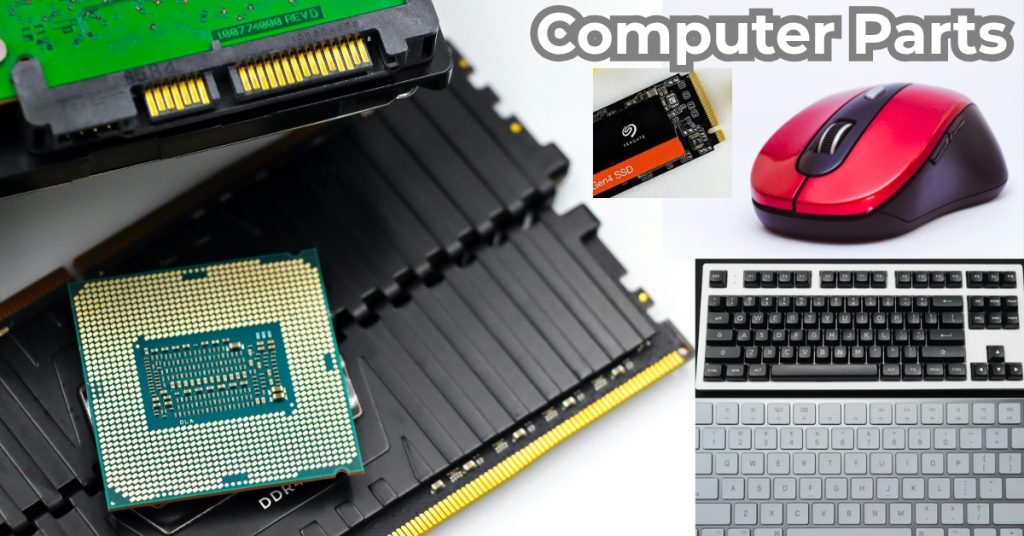
Ever wondered what’s inside your PC? Learn about computer parts and functions in this simple, human-friendly guide. Perfect for beginners!
Computer Parts and Functions: A Friendly Guide to What’s Actually Inside Your Computer
Have you ever sat in front of your laptop or desktop, staring at the screen, and wondered: “What is actually happening inside this thing?”
To most of us, computers feel like magic boxes. You press a button, a light comes on, and suddenly you’re watching YouTube, finishing a school project, or joining a work meeting. But inside that sleek metal plastic shell, there is a whole world of tiny components working together in a high-speed dance.
If you’ve ever been intimidated by technical jargon, don’t worry. You don’t need an engineering degree to understand computer parts and functions. In fact, once you break it down, a computer is a lot like a human body or a busy kitchen.
In this guide, we’re going to pull back the curtain. Whether you’re a student, a professional looking to upgrade your gear, or just someone who wants to stop feeling lost when the IT guy talks, this is for you. Let’s dive in.
Click to Learn Computer Basic Skills…

The “Brain” of the Operation: The CPU
If your computer had a personality, the Central Processing Unit (CPU) would be its brain. It is a tiny silicon chip, usually no bigger than a cracker, but it is the most powerful piece of hardware in the machine.
The CPU’s job is to follow instructions. Every time you move your mouse, click a link, or type a letter, you are sending a command to the CPU. It calculates those commands and tells the rest of the parts what to do next.
Why does it get so much attention?
When people talk about a “fast” computer, they are usually talking about the CPU. If the brain is fast, the computer feels snappy.
- Real-Life Example: Imagine a head chef in a five-star restaurant. The chef doesn’t necessarily chop every carrot, but they read every order and tell the other cooks exactly how to prepare the meal. If the chef is slow, the whole restaurant slows down.
The Nervous System: The Motherboard
If CPU is the brain of the computer, the motherboard is the nervous system. It is a large, flat circuit board that acts as the foundation for everything else.
Every single part of your computer—the power cord, the hard drive, the keyboard—eventually connects to the motherboard. Its primary function is communication. It provides the “roads” (called traces) that allow electricity and data to travel from one part to another.
Why you should care:
You can’t just stick a high-end CPU into any motherboard. They have to be compatible, like a lock and key. The motherboard also determines how many “extras” you can add, like more USB ports or extra memory.
The “Right Now” Memory: RAM
Have you ever had twenty tabs open in your web browser and noticed your computer starting to chug and slow down? That is usually a RAM issue.
Random Access Memory (RAM) is your computer’s short-term memory. It stores the data that your computer is using right this second. When you open an app, the CPU “loads” it into the RAM so it can access the information instantly.
Why is it called “Volatile”?
RAM is super fast, but it’s also forgetful. As soon as you turn off the power, everything in the RAM disappears. This is why if your computer crashes before you hit “Save,” you lose your work.
- Real-Life Example: Think of RAM like the top of your office desk. If you have a huge desk, you can spread out your notebook, your laptop, your coffee, and three textbooks all at once. If you have a tiny desk, you can only look at one thing at a time.
The Filing Cabinet: Storage (SSD and HDD)
If RAM is your short-term memory, then Storage is your long-term memory. This is where your photos, your operating system, and your games live when the computer is turned off.
There are two main types of storage you’ll hear about:
1. Hard Disk Drives (HDD)
These are the “old school” version. Inside an HDD, there are actual spinning platters, kind of like a tiny record player. They are great because they are cheap and can hold massive amounts of data, but they are relatively slow and can break if you drop them.
2. Solid State Drives (SSD)
This is what you want in a modern computer. SSDs have no moving parts—they use flash memory (like a giant USB stick). They are incredibly fast. A computer with an SSD can turn on in 10 seconds, while an HDD might take a full minute.
- Real-Life Example: Storage is like a library or a filing cabinet. It doesn’t matter if the lights go out; the books stay on the shelf until you need to go get them.
The Visual Mastermind: The GPU
Do you like playing video games? Do you edit videos for TikTok or YouTube? Then you need to know about the Graphics Processing Unit (GPU), also known as the Video Card.
While the CPU is busy with logic and math, the GPU is an artist. Its entire job is to calculate how to draw images on your screen. It handles the colors, the 3D shapes, and the way light hits a surface in a game.
- Integrated vs. Dedicated: * Integrated: The GPU is built into the CPU. This is fine for Netflix and writing emails.
- Dedicated: A separate, powerful card. This is required for high-end gaming or professional design work.
The Heart: The Power Supply Unit (PSU)
The power supply provides electricity to the computer. The Power Supply Unit (PSU) is the heart of the computer. It takes the electricity from your wall outlet (which is usually too strong for computer parts) and converts it into the exact voltage your components need.
A bad PSU can actually be dangerous—it can fry your expensive parts if it sends a surge of power. It’s the one part of a computer where you never want to buy the “cheapest” option.
Staying Cool: Fans and Heat Sinks
Computers generate a lot of heat. If you’ve ever felt your laptop get hot on your lap, you know what I mean. If computer parts get too hot, they start to “throttle” (slow down) to save themselves from melting.
To combat this, we use:
- Heat Sinks: Metal blocks with fins that soak up heat from the CPU.
- Fans: These draw heat out of the case by blowing air over the heat sink.
- Thermal Paste: A weird, gooey substance that sits between the CPU and the heat sink to make sure the heat transfers perfectly.
The Shell: The Computer Case
The Case (or Chassis) is more than just a box. It’s designed to manage airflow and keep your parts safe. A good case keeps the dust out and ensures that the cool air from the fans actually reaches the parts that need it most. Plus, for many people, the case is where the “style” comes in—with glass windows and glowing RGB lights.
How it All Works Together (The “Pizza” Analogy)
Computer parts and functions_let’s put it all together. Imagine you are using your computer to order a pizza online.
- Input: You move your Mouse and click “Order.”
- Motherboard: The click reaches the CPU through the motherboard.
- CPU: The brain says, “Okay, we need to send this data to the internet.”
- RAM: The web browser you’re using is sitting in the RAM so it stays open and responsive.
- Storage: The computer remembers your login details because they were saved on your SSD.
- GPU: Your screen shows a beautiful, high-def image of a pepperoni pizza.
- PSU: All of this is happening because the power supply is pumping steady energy to every part.
Why Should You Learn Computer Parts and Functions?
Knowing about computer parts and functions gives you power as a consumer.
- If your computer is slow, you’ll know you might just need more RAM.
- If your computer takes forever to turn on, you’ll know it’s time to switch to an SSD.
- If your screen is flickering or blurry, you’ll know to check the GPU or the Monitor cables.
It takes the mystery out of the technology we use every single day.
Summary of Computer Parts and Functions
| Component | Function | Simple Analogy |
| CPU | Follows instructions | The Brain |
| Motherboard | Connects all parts | The Nervous System |
| RAM | Short-term memory | The Desk Space |
| SSD/HDD | Long-term memory | The Filing Cabinet |
| GPU | Handles visuals | The Artist |
| PSU | Provides electricity | The Heart |
| Case | Protects the parts | The Skin |
Final Thoughts
Computer parts and functions_The world of computers can seem scary because of all the acronyms and technical jargon. But at the end of the day, a computer is just a collection of parts working in harmony.
Next time you open your laptop or look at your desktop tower, you won’t just see a machine. You’ll see a brain, a heart, a memory, and a nervous system. You’ll understand that it’s not magic—it’s just really clever engineering.
Whether you’re a student starting your journey or a professional looking to stay current, understanding computer parts and functions is the first step toward mastering the digital world.
1. Is more RAM always better?
Up to a point, yes! For basic office work, 8GB is okay, but 16GB is the “sweet spot” for most people today. Having more RAM won’t necessarily make your computer faster, but it will stop it from slowing down when you do many things at once.
2. What is the difference between a Laptop and a Desktop inside?
They use the same types of parts! However, laptop parts are much smaller and designed to use less power so the battery lasts longer. Because they are so small, laptops usually run hotter than desktops.
3. Why is my computer making a loud whirring noise?
That’s usually the Fans. If your computer is working hard (like playing a game) or if there is a lot of dust inside, the fans have to spin faster to keep the parts cool. A good cleaning with some compressed air often fixes this!