New to computers? This 2026 guide explains Operating System Basics for Windows and Mac in plain English. Perfect for students and busy professionals.
Click to learn Computer Parts…
Understanding Operating System Basics: A Beginner’s Guide to Windows and Mac in 2026
Have you ever sat down in front of a laptop, stared at the glowing screen, and felt that tiny pinch of anxiety? Maybe you’re a student heading into your first semester, or perhaps you’re a professional who just got handed a MacBook after twenty years of using a PC. It feels like being dropped into the middle of a foreign city without a map. You know where you want to go, but you aren’t quite sure which “streets” lead there.
That “map” you’re looking for is actually the Operating System (OS).
In 2026, computers are faster and smarter than ever, but the core way they work hasn’t changed all that much. Whether you’re using a high-end Windows rig or a sleek Apple device, understanding Operating System Basics is the secret to feeling like you’re actually in control of your tech, rather than the other way around.
What Exactly is an Operating System? (The “Restaurant” Theory)
To understand Operating System Basics, let’s step away from the computer for a second. Imagine you’re at a busy restaurant.
- The Hardware is the kitchen. It has the stoves, the pans, the ingredients, and the chefs. This is your computer’s RAM, processor, and hard drive.
- The Software (Apps) are the customers. They want things done—a steak cooked, a salad tossed, or a drink poured.
- The Operating System is the Head Manager.
Without the Manager, the customers would be screaming at the chefs, two chefs would be trying to use the same pan at the same time, and the whole place would fall into chaos. The OS tells the hardware which “app” gets to use the processor right now and ensures that when you save a file, it doesn’t accidentally overwrite your favorite photos. It’s the silent hero of your digital life.
The Big Two: Windows vs. macOS in 2026
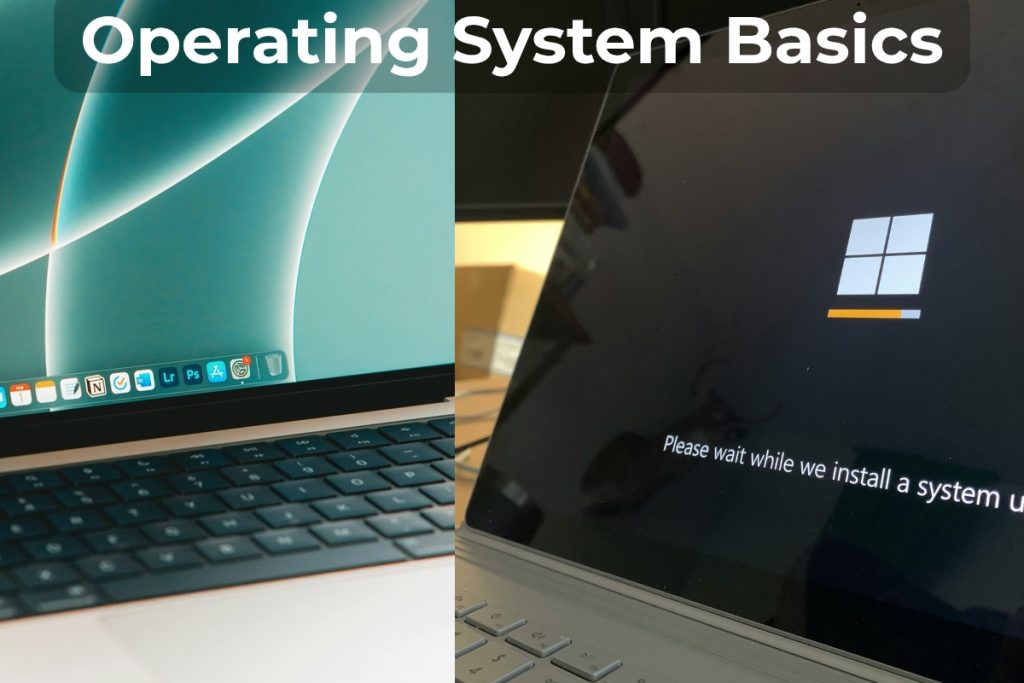
While there are other options like Linux (for the tech-savvy) or ChromeOS (for simple web browsing), the world mostly runs on a two-party system: Microsoft Windows and Apple macOS.
1. Microsoft Windows: The Universal Language
Windows is the most popular OS on the planet for a reason. It’s flexible. You can find Windows on a $300 laptop for a student or a $5,000 workstation for an engineer.
- The Vibe: It’s like a Swiss Army knife. It might not always be the “prettiest,” but it can do almost anything.
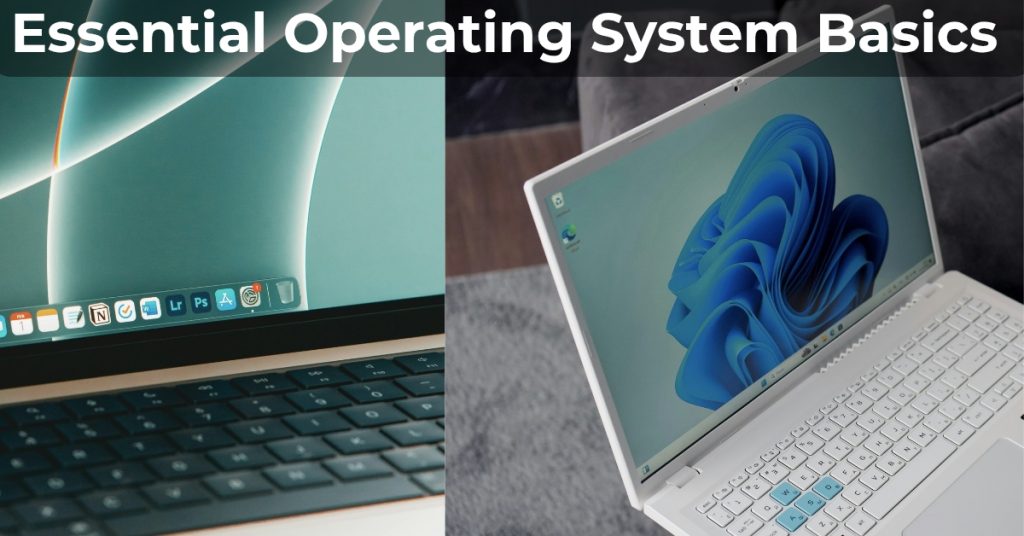
- The Layout: You’ve got the Taskbar at the bottom and the Start Menu in the corner. This is your home base.
- AI Integration: By 2026, Windows has “Copilot” baked into every corner. You can literally talk to your computer and ask it to “find that spreadsheet I was working on last Tuesday,” and it’ll find it.
2. Apple macOS: The Polished Sanctuary
Apple does things differently. They make both the computer (the hardware) and the software. Because of this, everything feels incredibly smooth.
- The Vibe: It’s like a luxury car. It’s sleek, the doors close with a satisfying “thud,” and everything is exactly where you expect it to be.
- The Layout: Instead of a Start Menu, you have the Dock—that row of pretty icons at the bottom.
- The Ecosystem: If you have an iPhone, the Mac is a no-brainer. You can take a phone call on your laptop or copy a photo on your phone and “paste” it onto your Mac screen. It feels like magic.
The Pillars of Operating System Basics
No matter which system you choose, you’ll be dealing with the same four “pillars.” Once you master these, you can use any computer in the world.
A. The User Interface (UI)
This is just a fancy word for “the stuff you see on the screen.”
- Icons: These are the little pictures you click on.
- Folders: These are your digital boxes.
- Windows: (With a small ‘w’) These are the boxes that open up when you run an app. You can resize them, minimize them (hide them), or close them.
B. File Management
This is where most beginners get frustrated. Have you ever downloaded a file and then couldn’t find it five minutes later? That’s a file management fail.
- On Windows: You use File Explorer.
- On Mac: You use Finder.
- The Pro Tip: Treat your computer like a real filing cabinet. Don’t leave everything on the “Desktop.” Create folders for “Taxes,” “School Projects,” and “Photos.”
C. The “Brain” (Settings)
Every OS has a central nervous system.
- On Windows, it’s Settings (formerly Control Panel).
- On Mac, it’s System Settings.This is where you go when the Wi-Fi isn’t working, when your screen is too bright, or when you want to change your password.
D. Hardware Interaction
This is something the OS does behind the scenes. When you plug in a mouse, the OS “talks” to it. This happens through things called Drivers. In 2026, this is almost entirely automatic, but it’s good to know that the OS is the one doing the heavy lifting.
Real-Life Example: Getting Through a Workday
Let’s look at how Operating System Basics actually play out in a real 2026 scenario.
Imagine you’re a freelance writer. You open your laptop. The OS recognizes your face and logs you in. You have a browser open for research, a Word document for writing, and Spotify for music.
The OS is busy balancing the power. It makes sure Spotify doesn’t hog all the “brainpower” so that your typing stays smooth. When you save your work, the OS sends it to the Cloud (OneDrive or iCloud) so you can access it on your phone later. If your battery gets low, the OS dims the screen to give you ten more minutes of work. You aren’t “managing” the computer; the OS is managing it for you.
Why Understanding This Matters for Your Career
If you’re a professional, “I’m not a computer person” is no longer an excuse. In 2026, every job is a tech job to some degree.
Knowing Operating System Basics means:
- You’re faster. You aren’t hunting for files for twenty minutes.
- You’re safer. You know how to spot a weird system pop-up that might be a scam.
- You’re independent. You don’t have to call the IT department just to connect a second monitor or change your screen resolution.
Troubleshooting: When the “Manager” Faints
Even the best systems have bad days. If your computer freezes, don’t panic.
- The Magic Restart: About 90% of computer problems are solved by turning it off and on again. This clears out the “junk” in the RAM and lets the OS start fresh.
- Force Quitting: If one app is frozen, you don’t have to shut down the whole computer.
- >>On Windows, press Ctrl + Shift + Esc to bring up the Task Manager and “End Task.”
- >>On Mac, press Command + Option + Esc to “Force Quit.”
Conclusion: Mastering the Machine
At the end of the day, an Operating System is just a tool. It’s the bridge between your ideas and the screen. Whether you’re a Windows fan who loves the flexibility or a Mac devotee who loves the simplicity, the Operating System Basics remain the same.
Start by getting organized. Learn three keyboard shortcuts today. Explore your settings menu just to see what’s in there. The more you understand how the “Manager” works, the more confident you’ll feel every time you open that lid.
Summary of Key Points:
- The OS is the bridge between you and the hardware.
- Windows is the king of variety and gaming; Mac is the king of design and ecosystem.
- File Management is the most important skill to keep your sanity.
- Updates and Security are your best defense against 2026’s digital threats.
1. Which is better for a total beginner, Windows or Mac?
Generally, macOS is considered slightly easier for beginners because there are fewer ways to “mess up” the settings. However, Windows is so common that learning it first might be more useful for your career.
2. Can I use a Mac at home if I use Windows at work?
Absolutely. In 2026, most apps (like Chrome, Zoom, and Microsoft Office) look and act exactly the same on both systems. The only “learning curve” is getting used to the different keyboard buttons.
3. What’s the biggest mistake people make with their Operating System?
Ignoring updates! People think updates are just about new features, but in 2026, they are mostly about security. An un-updated OS is like a house with a broken lock. Always hit “Update.”